Downloads Disk Guard
Disk Guard — disk and heavy-folder monitor
Quickly find what fills the disk, filter by size and name, and delete carefully to the Recycle Bin — in Hebrew and English.
- Windows 10/11 (64-bit)
- Hebrew · English
- Free to download
What this app does
Disk Guard is a Windows app for finding heavy folders and files. It fits disk cleanup, spotting caches, and understanding drive usage — without a cluttered UI.
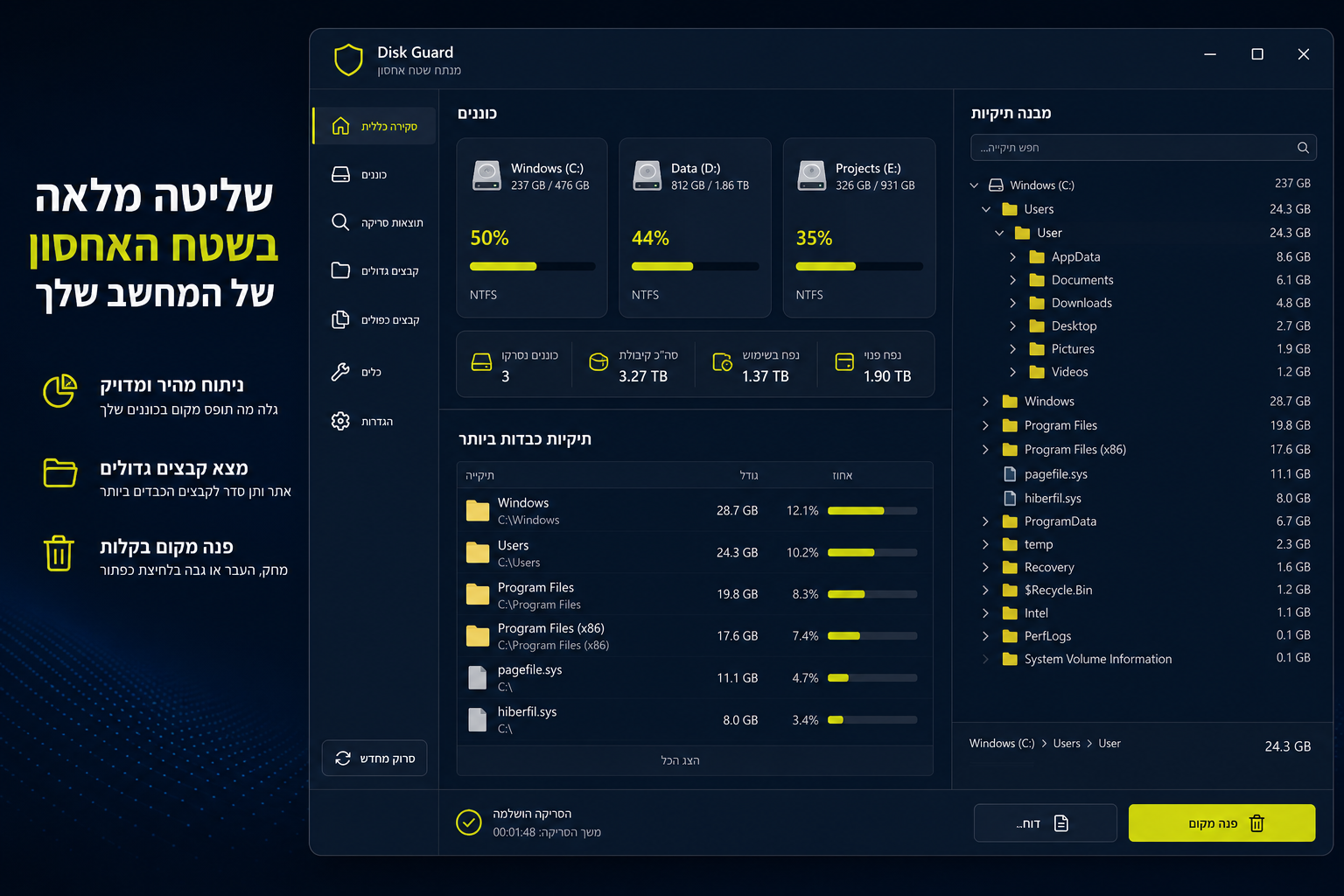
After a scan you get a heaviest-folders panel and a tree with percent of parent. Delete moves items to the Windows Recycle Bin after an in-app confirm; system paths are marked protected.
Key features
-
Drive overview
Drive cards with used, free, and fill percent — click to start a scan.
-
Scan with progress
Scan a drive or folder with percent, file counts, and cancel.
-
Heaviest folders
A Top list of paths that use the most space — click to expand in the tree.
-
Filterable tree
Filter by name or extension, minimum size, folders only, and sort by size or name.
-
Delete to Recycle Bin
Move to the Windows Recycle Bin after an in-app confirm — not a permanent wipe from the app.
-
Protected paths
Windows, Program Files, and system paths are marked and cannot be deleted from the app.
-
Context menu
Copy path, show in Explorer, expand, rescan, and delete.
-
Languages
Full UI in Hebrew (RTL) and English (LTR).
Quick start
- 1. Download the installer and install.
- 2. Pick a drive or browse to a folder.
- 3. Wait for the scan to finish (you can cancel).
- 4. Check the heaviest list and the tree.
- 5. Delete carefully — items go to the Recycle Bin.
Tips
- Delete key deletes the selected item (after confirm).
- Ctrl+C copies the path · F5 refreshes or re-scans.
- Paths marked Protected cannot be deleted from the app.
- Please do not use on Shabbat and Jewish holidays.
Requirements and data
- Windows 10 or 11, 64-bit · WebView2 (installed automatically if missing)
- Settings stored under %AppData%\disk-guard\
Deletes move to the Windows Recycle Bin when the system allows it.
Ready to free up space?
Download the installer from GitHub or via direct download, scan a drive, and find the heaviest folders.